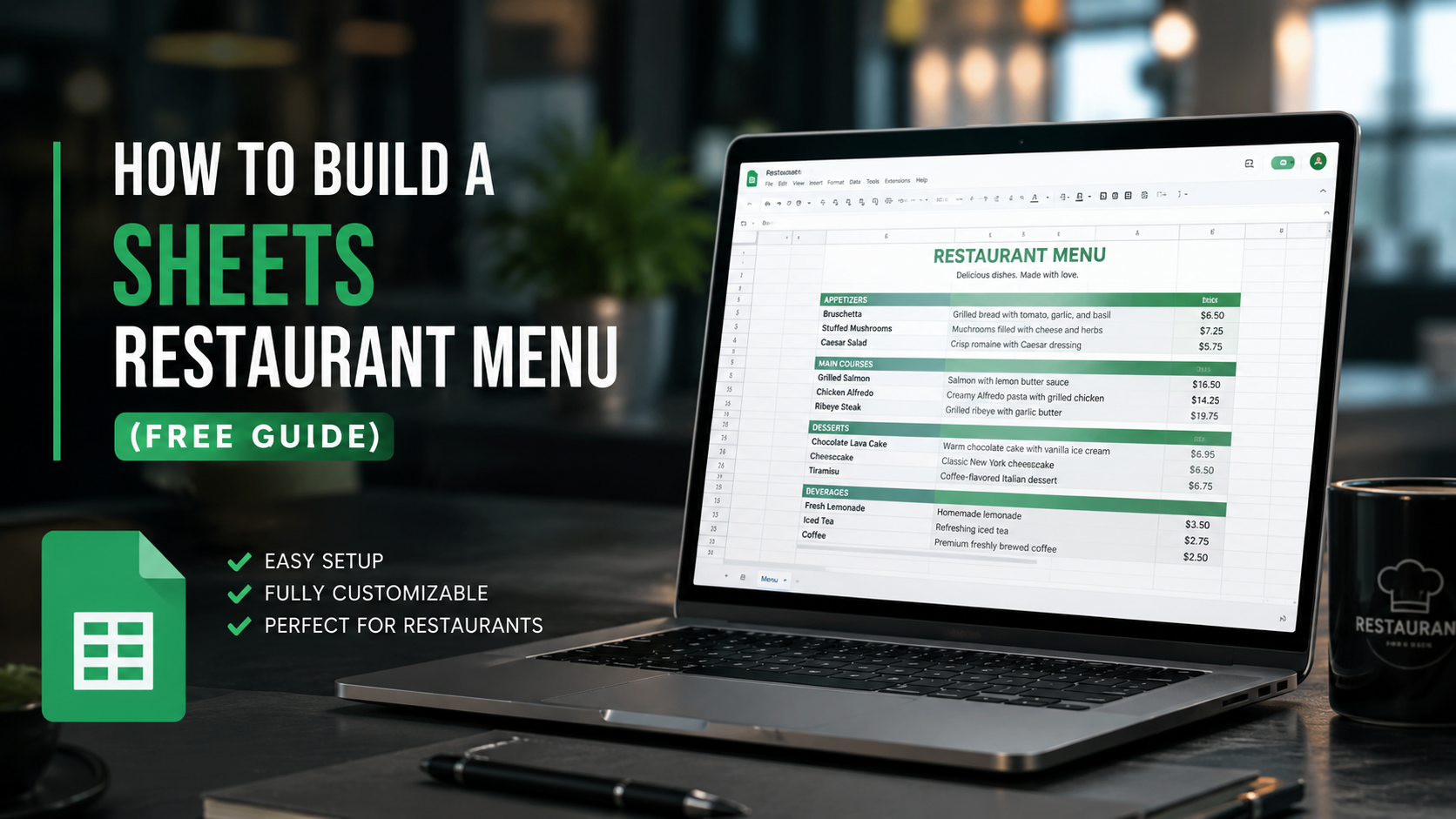
How to Build a Sheets Restaurant Menu (Free Guide + Templates)
Most restaurant owners don’t have a graphic designer on speed dial, and printing new menus every time a price changes gets expensive fast. That’s why so many small restaurants, food trucks, and cafés have quietly switched to building their menu in Google Sheets instead.
A sheets restaurant menu is exactly what it sounds like: a menu built and managed inside a spreadsheet, then either printed, shared as a link, turned into a QR code, or embedded on a website. It’s not flashy, but it’s fast, free, and easy for anyone on your team to update — no design skills required.
In this guide, you’ll learn:
- What a sheets restaurant menu actually is and when it makes sense to use one
- How to build one from scratch, step by step
- How to add pricing formulas, food cost calculations, and QR codes
- The pros, cons, and limitations compared to Canva, Google Docs, and dedicated menu software
- Where to find reliable free templates
- Answers to the most common questions restaurant owners ask about this approach
Table of Contents
- What Is a Sheets Restaurant Menu?
- Who Should Use One (and Who Shouldn’t)
- How to Build a Restaurant Menu in Google Sheets
- Adding Pricing, Food Cost, and Profit Formulas
- Turning Your Sheet Into a QR Code Menu
- Key Features, Benefits, and Drawbacks
- Sheets vs. Other Menu-Building Options
- Pros and Cons at a Glance
- Where to Find Templates
- Frequently Asked Questions
- Final Thoughts
What Is a Sheets Restaurant Menu? {#what-is-a-sheets-restaurant-menu}
A sheets restaurant menu is a menu structured as rows and columns in Google Sheets, Google’s free spreadsheet tool. Instead of laying out dishes visually in Canva or Photoshop, you list each item, its category, description, and price in a spreadsheet — the same way you’d track inventory or expenses.
From there, that spreadsheet can serve several purposes:
- A working document your kitchen and management team update together in real time
- A source file that feeds a printed menu, PDF, or website
- A live digital menu connected to a QR code, using a tool like Sheet2Site or Glide
- A cost-tracking tool that calculates food cost percentage and profit margin per dish
The appeal isn’t the visual polish — spreadsheets aren’t going to out-design a professional menu template. The appeal is control. Anyone who can edit a spreadsheet can update a price, add a seasonal item, or mark something as sold out, without waiting on a designer or reprinting anything.
Who Should Use One (and Who Shouldn’t) {#who-should-use-one}
A sheets-based menu tends to work well for:
- New restaurants and food trucks still finalizing their menu and prices
- Cafés or bars that change items seasonally or daily
- Owners who want a simple internal system to manage pricing before designing a polished public-facing menu
- Anyone tracking food cost, recipe pricing, or profit margins alongside the menu itself
It’s probably not the right fit for:
- Fine dining restaurants where the printed menu is part of the brand experience
- Businesses that need a highly designed, photo-heavy menu for marketing
- Teams with no comfort using spreadsheets at all
Many restaurants actually use both: Sheets for internal pricing and planning, and a separate tool (Canva, a POS system, or a menu design service) for the customer-facing version.
How to Build a Restaurant Menu in Google Sheets, Step by Step {#how-to-build}
You don’t need any add-ons to get started. Here’s a straightforward setup.
1. Set Up Your Categories
Create one column for menu category (Appetizers, Mains, Desserts, Drinks) and use it to group items. Many people use a separate tab per category, or one tab with a filter applied — either works, but a single tab is easier to manage for smaller menus.
2. Build Your Core Columns
A basic structure looks like this:
| Category | Item Name | Description | Price | Allergens | Available |
|---|---|---|---|---|---|
| Appetizers | Loaded Nachos | Tortilla chips, cheddar, jalapeños, salsa | $9.50 | Dairy | Yes |
| Mains | Grilled Salmon | Served with roasted vegetables | $18.00 | Fish | Yes |
3. Use Data Validation for Consistency
Google Sheets’ Data Validation feature lets you create dropdown menus for fields like “Category” or “Available” (Yes/No), so staff can’t accidentally misspell a category or leave a field blank.
4. Apply Conditional Formatting
Use conditional formatting to automatically highlight items marked “Sold Out” in red, or new seasonal items in green. This makes the sheet easier to scan at a glance during a busy shift.
5. Lock Down Editing Permissions
Under Share, you can give kitchen staff “Editor” access to update availability, while limiting price changes to managers using protected ranges — a feature that lets you lock specific cells or sheets from editing by certain users.
6. Export or Publish
Once it’s built, you have a few options:
- File > Download > PDF for a printable version
- File > Share > Publish to web to get a live link
- Copy the data into a design tool like Canva or Google Docs for a polished visual layout
Adding Pricing, Food Cost, and Profit Formulas {#pricing-formulas}
This is where a spreadsheet menu genuinely outperforms a designed one: built-in math.
A simple food cost formula looks like this:
Food Cost % = (Cost to Make the Dish / Menu Price) × 100In Google Sheets, if column D has your ingredient cost and column E has your menu price, you’d write:
=D2/E2*100This tells you what percentage of the menu price goes toward ingredients — a number most restaurants aim to keep in a healthy range depending on their concept and margins. You can extend this further by adding a column for gross profit per dish:
=E2-D2Sorting by this column instantly shows you your most and least profitable items, which is genuinely useful when deciding what to promote or cut from the menu.
Turning Your Sheet Into a QR Code Menu {#qr-code-menu}
If you want customers to view your Sheets-based menu digitally, a few third-party tools can convert a Google Sheet into a live, styled webpage with a scannable QR code:
- Sheet2Site, which offers a restaurant-specific template designed to pull data directly from a Sheet<cite index=”2-1″>, letting you build a menu with dishes, descriptions, prices, and images, and customize fonts and colors, including the option to remove elements like photos that some restaurants don’t use</cite>.
- Glide and similar no-code app builders, which can turn a spreadsheet into a browsable mobile menu
- A basic QR code generator pointed at a “Publish to web” link, for a simpler (though less styled) option
This approach became especially popular because it solves a real problem: when a price or item changes, you edit the spreadsheet once, and the live menu updates automatically — no reprinting QR code menu cards.
Key Features, Benefits, and Drawbacks {#features-benefits-drawbacks}
Key Features
- Free to use with any Google account
- Real-time collaboration — multiple staff members can edit simultaneously
- Built-in formulas for pricing, cost, and margin calculations
- Version history, so you can undo mistakes or see who changed what
- Cross-platform access from phone, tablet, or desktop
- Data validation and conditional formatting for consistency and visibility
Benefits
- No design software or subscription needed to get started
- Easy for non-technical staff to update
- Naturally doubles as a cost-tracking and planning tool
- Works well alongside POS and inventory spreadsheets many restaurants already use
Drawbacks
- Not visually appealing on its own — it looks like a spreadsheet, not a menu
- Requires a third-party tool (like Sheet2Site) to become a polished public-facing digital menu
- No built-in menu design elements: no drag-and-drop layout, fonts, or branding tools
- Easy to accidentally break formulas or formatting if permissions aren’t managed carefully
Sheets vs. Other Menu-Building Options {#comparison}
| Feature | Google Sheets | Google Docs | Canva | Dedicated Menu Software |
|---|---|---|---|---|
| Cost | Free | Free | Free / Paid tiers | Often paid or subscription |
| Design flexibility | Low | Medium | High | High |
| Built-in pricing formulas | Yes | No | No | Sometimes |
| Real-time team editing | Yes | Yes | Limited on free plan | Varies |
| QR code / digital menu | Needs third-party tool | Needs third-party tool | Needs third-party tool | Often built-in |
| Best for | Internal pricing & planning | Simple printable menus | Polished, branded menus | Full digital menu systems |
If your priority is a menu that looks professional straight out of the box, Canva or a dedicated menu-design template will get you there faster. If your priority is a menu you can update instantly and track costs against, Sheets wins.
Pros and Cons at a Glance {#pros-cons}
| Pros | Cons |
|---|---|
| Completely free | Requires manual formatting for a polished look |
| Easy real-time collaboration | Not ideal as a final customer-facing menu on its own |
| Great for pricing and food cost tracking | No native QR code or digital menu feature |
| Familiar tool most staff already know | Risk of accidental edits without permission controls |
| Works on any device with a browser | Limited design customization compared to Canva |
Where to Find Templates {#templates}
Rather than building from a blank sheet, several sources offer ready-made restaurant menu templates for Google Sheets, including options with pre-built food cost calculators, category layouts, and branding placeholders. <cite index=”4-1″>These typically include editable branding fields for restaurant name and contact details, along with several flexible category sections you can adapt to appetizers, entrees, desserts, or beverages</cite>. Marketplaces like Etsy also offer paid templates <cite index=”3-1″>covering menu pricing spreadsheets and recipe costing tools built specifically for café and restaurant owners</cite>, while some Google Sheets template libraries offer city- and cuisine-specific versions with food cost calculators built in.
When choosing a template, look for one that separates the “internal” pricing data (cost, margin) from the “customer-facing” columns (name, description, price), so you can hide sensitive cost data before sharing the menu externally.
Frequently Asked Questions {#faq}
Is Google Sheets actually good for building a restaurant menu? It’s good for managing and pricing a menu, not for designing a visually polished one. Most restaurants use it as the backend and pair it with a design tool or QR code service for the customer-facing version.
Can customers scan a QR code and see my Google Sheet directly? Not in a usable way — a raw published Sheet link isn’t designed for customer browsing. Tools like Sheet2Site convert the data into a styled, mobile-friendly page that a QR code can point to.
How do I stop staff from editing menu prices by accident? Use protected ranges under Data > Protect sheets and ranges to restrict editing of price columns to specific users, while leaving other columns open to broader editing.
Can I calculate food cost percentage directly in the sheet? Yes. A simple formula dividing ingredient cost by menu price, multiplied by 100, gives you food cost percentage per dish, and you can sort or filter by this to spot your most and least profitable items.
Do I need any add-ons to build this? No. Everything described here — dropdowns, formulas, conditional formatting, protected ranges — is built into standard Google Sheets at no extra cost.
Is this the same as a Google Docs menu? No. Google Docs is better suited for a printable, text-and-image layout menu, while Sheets is better for structured data, pricing, and calculations. Some people build the menu data in Sheets and then copy it into Docs or Canva for the final printed design.
What’s the difference between this and using a POS system’s built-in menu editor? A POS (point-of-sale) system’s menu editor is directly connected to your ordering and payment system, so changes reflect at checkout. A Sheets-based menu is not connected to any ordering system by default — it’s a planning and display tool, not a transactional one.
Can I track multiple locations’ menus in one sheet? Yes, by adding a “Location” column and using filters or separate tabs per location, which is a common approach for small multi-location restaurant groups.
Is a spreadsheet menu mobile-friendly for customers? Not on its own. A published Google Sheet is difficult to read on a phone. This is the main reason most people pair it with a QR-code or website tool rather than sharing the raw sheet link.
How often should I update pricing in the sheet? There’s no fixed rule, but many owners review food cost percentages monthly or quarterly, and update prices whenever ingredient costs shift enough to affect their target margin.
Final Thoughts {#conclusion}
A sheets restaurant menu won’t win any design awards, but that was never really the point. It’s a practical way to manage pricing, track food costs, and keep your team on the same page without paying for software you don’t need yet.
If you’re just getting your concept and pricing figured out, start in Sheets. Once your menu stabilizes, pull that data into a design tool or a QR-code service to give customers the polished version they expect — and keep the spreadsheet running quietly in the background as your pricing and cost-tracking source of truth.
About the Author




Тем, кто только начинает, полезно пройти обучение xrumer, чтобы научиться работать с программой.
Современные смартфоны обладают множеством скрытых функций, о которых знает далеко не каждый пользователь. Поэтому перед использованием устройства полезно ознакомиться с дополнительной технической информацией. Apple iPhone 8 256GB Gold На странице собраны секретные коды для мобильных телефонов Apple iPhone, которые пригодятся для получения сервисной информации, проверки устройства и использования скрытых возможностей.