Introduction
If you’re a student, parent, or staff member in the Wake County Public School System (WCPSS), there’s a good chance you’ve run into the Wake ID Portal — and maybe gotten a little stuck on it.
That’s understandable. One login is supposed to unlock everything from Canvas to email to PowerSchool, but the first-time setup, password rules, and multiple sign-in paths (student, staff, parent) trip up a lot of people every August.
This guide walks through exactly what the Wake ID Portal is, how to log in as a student, parent, or staff member, how to reset a forgotten password, and how to fix the most common access problems — using only verified information from WCPSS’s own documentation.
What you’ll learn:
- What the Wake ID Portal actually does
- How to log in for each user type
- How to claim, reset, or change a Wake ID password
- Common login errors and how to fix them
- How the portal compares to related WCPSS systems like PowerSchool and Infinite Campus
- Answers to the most common Wake ID questions
Table of Contents
- What Is the Wake ID Portal?
- Who Uses the Wake ID Portal?
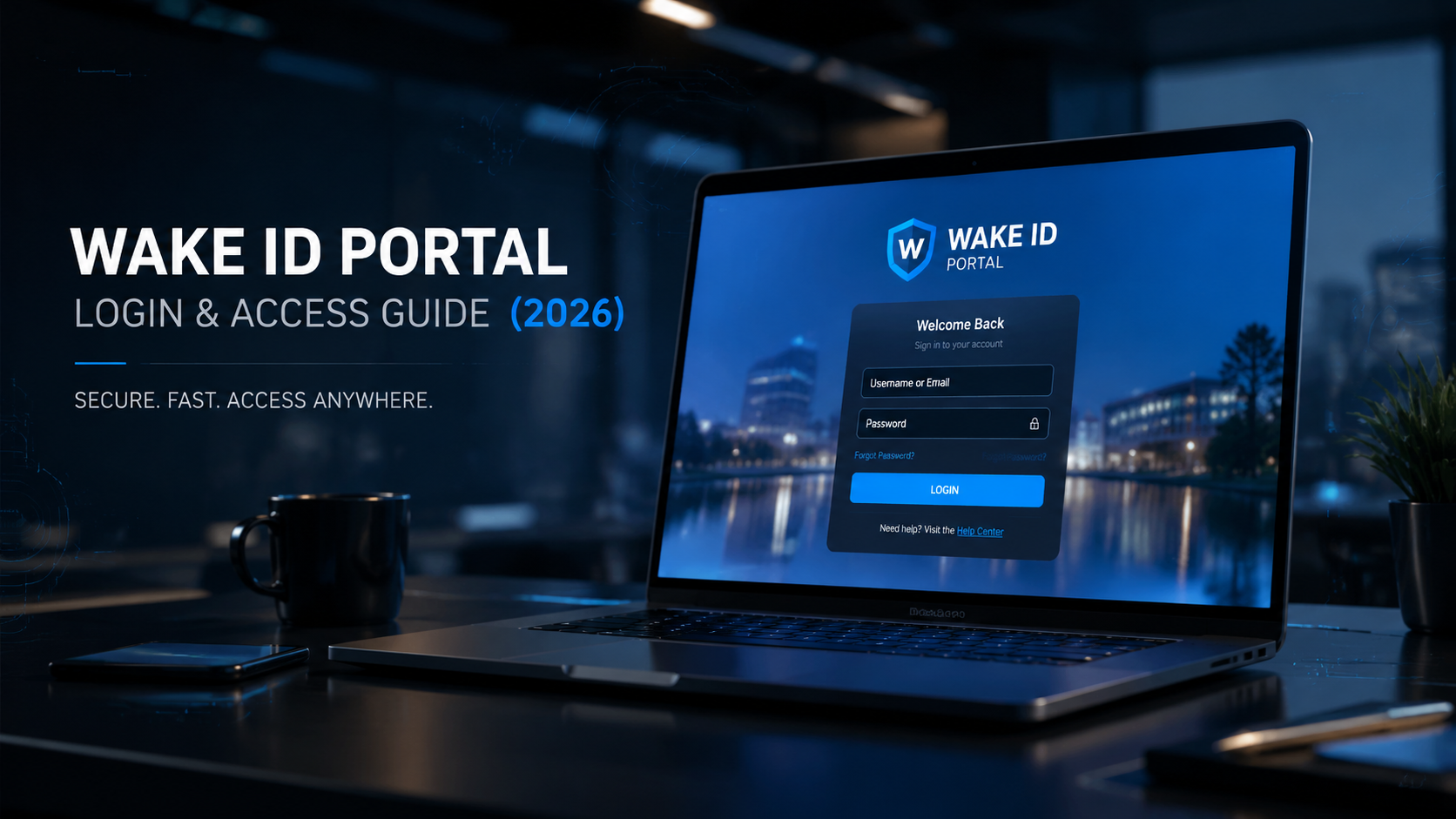
- How to Log In to the Wake ID Portal
- How to Claim or Reset Your Wake ID Password
- Key Features of the Wake ID Portal
- Wake ID Portal vs. Related WCPSS Systems
- Pros and Cons of the Wake ID Portal
- Common Login Problems and Fixes
- Security Tips for Wake ID Users
- Frequently Asked Questions
- Conclusion
What Is the Wake ID Portal?
The Wake ID Portal is the single sign-on system used by the Wake County Public School System (WCPSS) in North Carolina — the largest public school district in the state, serving more than 161,115 students across 203 schools as of the 2025–26 school year.
Instead of remembering separate logins for every school tool, students, staff, and (through linked systems) parents use one Wake ID account to reach the applications they need. According to WCPSS’s own documentation, the WakeID Portal allows access to multiple WCPSS applications including Outlook email, Google, and Canvas.
Staff accounts unlock a wider set of tools. One WCPSS technical resource notes that logging in through the Wake ID icon gives access to most WCPSS applications, including Outlook email, Google Drive, Google Classroom, Canvas, and the WCPSS intranet known as WakeConnect.
In short: think of the Wake ID Portal as a digital front door. Behind it sit the classroom, communication, and administrative tools that keep a 200-school district running day to day.
Where to Access It
The official login address is wakeid.wcpss.net, and the account management/help site is mywakeid.wcpss.net. WCPSS’s staff login instructions specifically direct users to visit http://wakeid.wcpss.net using Google Chrome or Firefox, and to learn more about account details at mywakeid.wcpss.net.
A word of caution: several unofficial sites (with names like “wakeidportal.us” or similar) have popped up online offering “guides” to the portal. These are not run by WCPSS. Always type the district’s official domain directly into your browser rather than clicking a link from search results or an unfamiliar site, especially when entering a password.
Who Uses the Wake ID Portal?
The portal serves three main groups, each with a slightly different login path.
Staff: Teachers, administrators, and district employees use Wake ID to reach email, Canvas (the district’s learning management system), Google Workspace, and internal tools like WakeConnect and PowerTeacher.
Students: Students in grades 3 and up log in with a Wake ID to reach Canvas, Google Classroom, and their PowerSchool/Infinite Campus student records. Per WCPSS documentation, the WakeID Portal allows students to access several WCPSS tools and applications including Google, Canvas, and Office 365.
Parents: Parents don’t get a separate “Wake ID” in the same sense — instead, they typically create a Campus Parent account (part of Infinite Campus) and log in to Campus Student using their student’s WakeID portal credentials to view grades, attendance, and transportation details for their children.
Younger students (K-2): For the youngest learners, WCPSS has simplified the process. K-2 students can log in using a QR code printed by their teacher, in place of typing a username and password, though the traditional login method is still available for those who prefer it.
How to Log In to the Wake ID Portal
The exact steps differ slightly by user type. Here’s what WCPSS’s own login instructions outline.
Student Login (Grades 3+)
- Open Chrome or Firefox and go to wakeid.wcpss.net.
- Click Sign In, then Select User Type and choose Student.
- Enter your Wake ID username (this typically follows a set format assigned by the district, similar to a staff email prefix like jrsmith7).
- Click Continue to Log In.
- Enter your Wake ID password. For a first-time login, the default password is the student’s ID number, which is also the student’s lunch number.
- Click Continue to Log In again.
After a successful first login, WCPSS requires students in grades 3–13 to set a new password immediately, since the district doesn’t allow the default student ID number to remain as a permanent password.
Staff Login
- Go to wakeid.wcpss.net using Chrome or Firefox.
- Choose Staff as the user type.
- Enter your Wake ID (the portion of your district email before the @ symbol).
- Enter your Wake ID password — the one created when the account was first claimed.
- Click Continue to Log In.
Staff members must claim their account before this first login works — more on that below. Once logged in, the applications page loads, and the specific apps displayed can vary depending on the user’s role.
Parent Login (via Infinite Campus)
Parents don’t log into “Wake ID” directly for report cards and attendance. Instead:
- Watch for an email from Infinite Campus — WCPSS notes that families typically receive this starting in early July with instructions for creating a Campus Parent account.
- Follow the link to set up the account, using the email address WCPSS has on file.
- Afterward, log in to Campus Student using the WakeID portal credentials tied to the student.
- If the setup email is missed, reminder emails are sent weekly until the account is activated.
One useful detail for larger families: families with multiple students enrolled in WCPSS can access all of their children’s records through a single Campus Parent login, rather than juggling one account per child.
How to Claim or Reset Your Wake ID Password
Claiming a New Staff Account
New staff can’t just log in on day one — the account has to be claimed first. WCPSS documentation is direct about this: staff must claim their WakeID account prior to their first login. During account claiming, new employees typically verify their identity using their employee ID and answer security questions before setting a permanent password.
According to district technical guidance, new WCPSS staff use their six-digit employee ID as their initial password, adding leading zeros if the ID has fewer than six digits.
Changing a Student Password
Students in grades 3–13 must update their password the first time they log in. The general process:
- Complete a normal first-time student login using the student ID as the password.
- Click the on-screen link to change the password (this link only appears the first time).
- Follow the on-screen password requirements. Per WCPSS’s guidance, the new password cannot be the same as the student ID number.
- Enter the new password in both fields and confirm.
Once changed, remember: a Wake ID password is a single password that unlocks multiple WCPSS applications — it should never be shared with classmates or anyone else.
Password Expiration for Staff
Staff accounts aren’t “set it and forget it.” WCPSS’s staff login documentation states plainly that WakeID passwords expire every 180 days, so staff should expect periodic prompts to create a new password roughly twice a year.
Forgot Your Password?
If a password is forgotten entirely (rather than simply expired), the mywakeid.wcpss.net help site is the designated resource for account recovery and additional guidance, since it’s specifically referenced across WCPSS’s login documentation as the place to learn more about your WakeID.
Key Features of the Wake ID Portal
Single Sign-On Access
The core value of the portal is consolidation. One login reaches email, learning platforms, and productivity tools instead of separate credentials for each.
Role-Based Application Display
The portal doesn’t show every app to every user. As WCPSS notes, the applications displayed after login may vary depending on the user’s role — a teacher’s dashboard looks different from a student’s or a substitute’s.
Multi-Factor Authentication
Security has been strengthened over time. According to portal documentation, the district has been implementing Multi-Factor Authentication with Duo to add a layer of protection beyond just a username and password.
QR Code Login for Young Students
For the district’s youngest students, K-2 learners can log in via a QR code that their teacher prints out, removing the need to type a username and password on a shared or personal device.
Connections to Core School Systems
Once inside, users reach a range of connected tools, including Outlook/Office 365 email, Google Workspace and Google Classroom, Canvas for coursework, PowerSchool/Infinite Campus for grades and attendance, and WakeConnect for staff intranet resources.
Real-World Usage Example
A typical school-day scenario: a WCPSS teacher logs into the Wake ID Portal each morning, opens Canvas to post the day’s assignment, checks Outlook for a message from a parent, and pulls up PowerTeacher to record attendance — all without logging into three separate systems.
Benefits:
- One credential set instead of many
- Centralized dashboard of approved apps
- Extra security through MFA
- Simplified login for young students via QR code
Drawbacks:
- First-time claiming/setup can be confusing for new users
- Staff passwords expire every 180 days, requiring periodic resets
- Parents use a separate (though linked) Infinite Campus login rather than a true “Wake ID,” which can cause confusion
- Unofficial third-party sites referencing “Wake ID” can create phishing risk if users don’t go directly to the official WCPSS domain
Wake ID Portal vs. Related WCPSS Systems
People often confuse the Wake ID Portal with the other systems it connects to. Here’s how they differ:
| System | Purpose | Who Uses It | Login Method |
|---|---|---|---|
| Wake ID Portal | Single sign-on gateway to WCPSS apps | Students, staff | Wake ID username + password (wakeid.wcpss.net) |
| Infinite Campus (Campus Parent/Student) | Grades, attendance, transportation records | Parents, students | Campus Parent account; students sign in via Wake ID |
| Canvas | Coursework, assignments, grading | Students, teachers | Accessed through Wake ID Portal |
| PowerSchool/PowerTeacher | Student records, gradebook (legacy/staff-facing tools) | Staff | Accessed through Wake ID or NCEdCloud |
| WakeConnect | Staff intranet and internal resources | Staff only | Accessed through Wake ID Portal |
The takeaway: Wake ID is the key, not the destination. It’s the login layer that sits in front of the tools people actually use for classwork, grades, and communication.
Pros and Cons of the Wake ID Portal
| Pros | Cons |
|---|---|
| Single login for multiple district tools | Staff must remember to reset passwords every 180 days |
| Role-based dashboard keeps things relevant | New accounts require a “claiming” step before first use |
| MFA via Duo adds account security | Parents don’t get a unified single Wake ID — they use a linked Campus Parent account |
| QR code login simplifies access for K-2 students | Some unofficial websites use the “Wake ID” name, creating potential confusion |
| Works across browsers on most devices | First-time student password (student ID) is not private, since it doubles as a lunch number |
Common Login Problems and Fixes
“My login isn’t working on the first try.” Double-check the user type selection (Student, Staff, or the correct option for your role). Wake ID logins are role-specific, and selecting the wrong type is one of the most common reasons a correct username and password still fails.
“I forgot to claim my account.” New staff accounts won’t work until claimed. If login attempts fail immediately for a brand-new employee, account claiming — not password reset — is usually the missing step.
“My password suddenly stopped working.” For staff, remember that WakeID passwords expire every 180 days. A password that worked a few months ago may simply need to be reset.
“I can’t see my child’s grades.” This usually isn’t a Wake ID problem at all — it means the Campus Parent account hasn’t been set up yet, or the invitation email was missed. Check for an email from Infinite Campus, since WCPSS sends weekly reminder emails until the account is activated.
“The site looks unfamiliar or is asking for extra personal information.” Confirm the URL is exactly wakeid.wcpss.net or mywakeid.wcpss.net. If it isn’t, close the tab — it’s likely an unofficial or unrelated site.
Security Tips for Wake ID Users
- Never share your Wake ID password. It unlocks email, coursework, and personal records in one shot.
- Log out on shared devices, especially school Chromebooks. WCPSS’s own staff instructions emphasize clicking the Logout button when finished.
- Set a fresh password immediately after any first-time login using a default password like a student ID or employee ID.
- Enable and complete MFA setup where prompted, since Duo-based multi-factor authentication adds a real barrier against unauthorized access.
- Bookmark the official URL rather than searching for “Wake ID login” each time, to avoid accidentally landing on an unofficial lookalike site.
Frequently Asked Questions
1. What is my Wake ID username? For staff, it’s typically the portion of your WCPSS email address before the @ symbol. For students, the district assigns a Wake ID username during enrollment; students unsure of theirs should check with their school’s front office or their teacher.
2. What is the default password for a new Wake ID account? For students, the default password is the student’s ID number (also the lunch number). For new staff, the default is a six-digit employee ID, padded with leading zeros if needed.
3. Do parents have their own Wake ID login? Not exactly. Parents use a separate Campus Parent account within Infinite Campus, though the system is connected to their child’s Wake ID credentials for student-side access.
4. How often do I need to change my Wake ID password? Staff accounts are required to update passwords every 180 days. Student password change requirements are triggered mainly at first login rather than on a recurring schedule, based on available WCPSS documentation.
5. Can I access the Wake ID Portal on a phone or tablet? Yes. According to portal guidance, the system works on most devices, including Chromebooks, tablets, and smartphones, and can be reached anywhere there’s an internet connection.
6. What should I do if I’m a new WCPSS employee and can’t log in? Confirm your account has been “claimed” first — this is a required step before a new staff Wake ID becomes active, separate from a standard password reset.
7. Is wakeid.wcpss.net the only official Wake ID site? The official login is at wakeid.wcpss.net, with account help at mywakeid.wcpss.net. Third-party sites referencing “Wake ID” in their name are not operated by WCPSS, and users should be cautious entering any credentials on them.
8. Why does my child’s login screen show a QR code option? That’s specifically for K-2 students. Teachers print a QR code for younger students to scan instead of typing a username and password, though the standard login is still available as an alternative.
9. What apps can I reach through the Wake ID Portal? Commonly connected tools include Outlook/Office 365 email, Google Workspace, Canvas, and — for staff — WakeConnect and PowerTeacher, though the specific list varies based on the user’s role.
10. My password isn’t the student ID anymore — is that normal? Yes. WCPSS requires students in grades 3–13 to change their password away from the default student ID at first login, so a different password afterward is expected behavior, not an error.
Conclusion
The Wake ID Portal isn’t complicated once you know which login path applies to you. Students and staff sign in directly at wakeid.wcpss.net with role-specific credentials, while parents work through a linked Campus Parent account to see grades and attendance.
Most of the friction people run into — failed first logins, expired passwords, missing grade access — traces back to one of a few things: selecting the wrong user type, skipping the account-claiming step, or missing the Infinite Campus setup email. Bookmark the official domain, set a strong password the moment you’re prompted to change a default one, and keep an eye out for that Infinite Campus email each July if you’re a parent.
Handle those basics, and the portal does exactly what it’s designed to do — get you into your classroom, inbox, and gradebook with one login instead of five.
About the Author




1 thought on “Wake ID Portal: Login & Access Guide (2026)”